Atobe Learning Function Guide
Action Button Guide
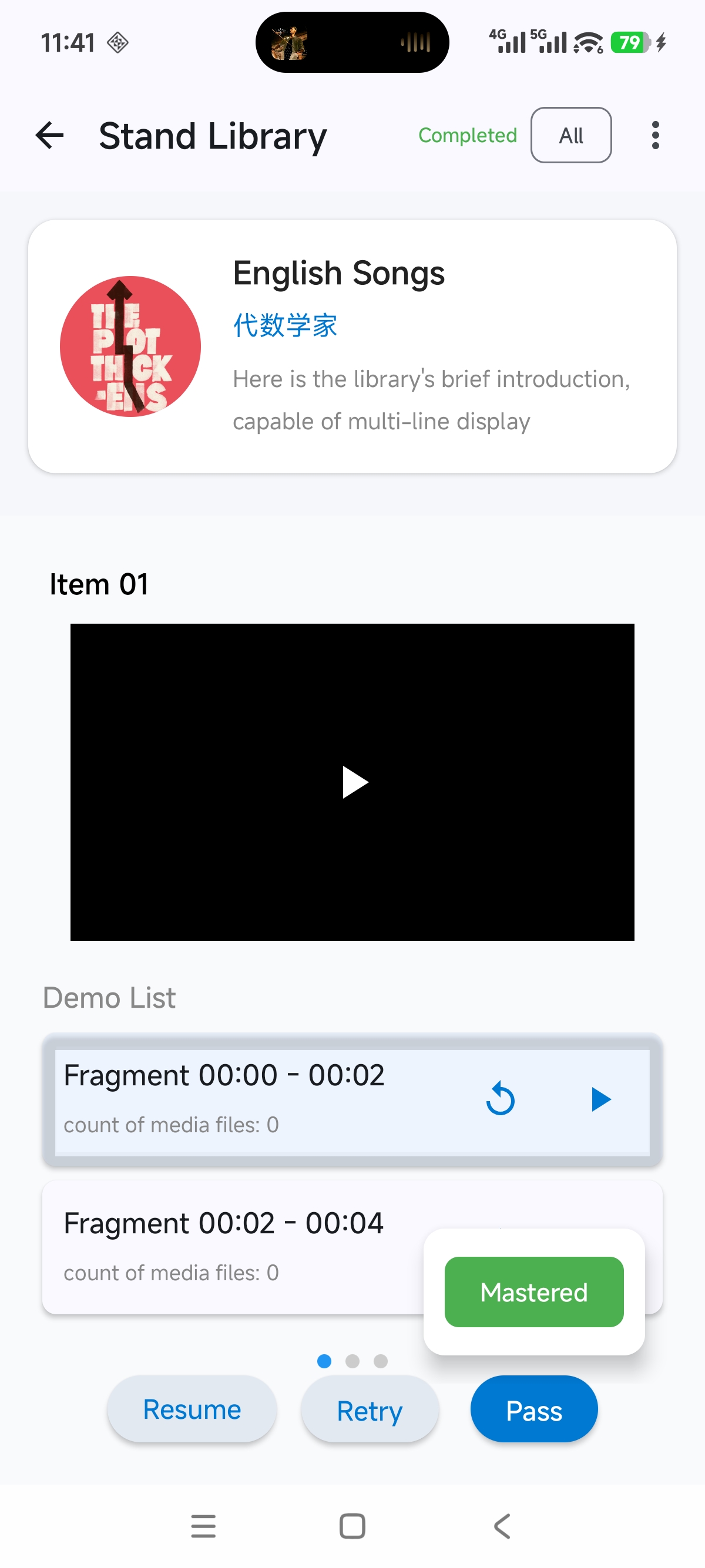
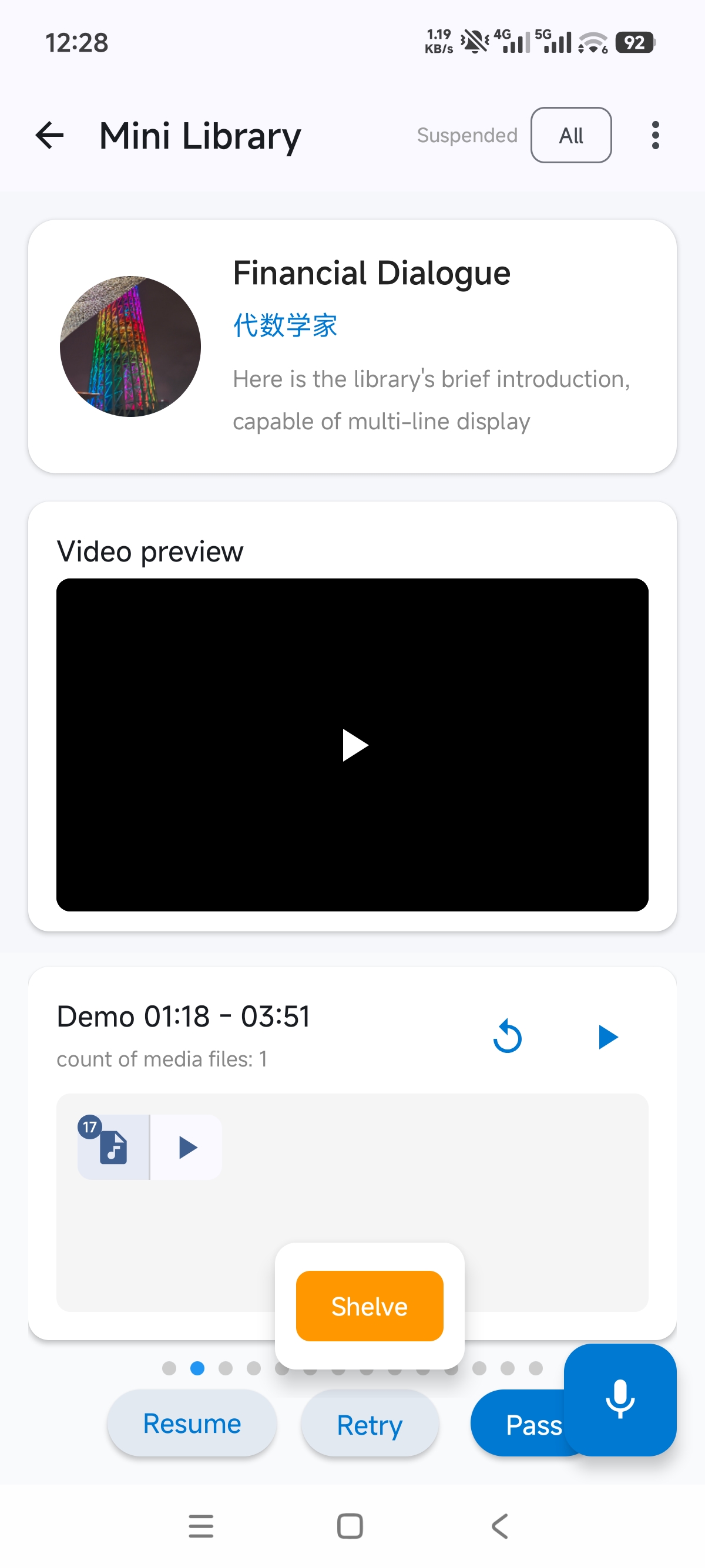
1. Pass: Your study/practice went fairly well. Mark it as passed and move on to the next item.
2. Practice Again: Your study/practice result was average or not very good. Stop for today, practice again in the near future, and move on to the next item.
3. Mastered (press and hold Pass): This study/practice item is already good enough and has been mastered, so it does not need to be pushed to you again later.
4. Shelve (press and hold Practice Again): Do not study/practice this item for now. Put it aside and come back to it later.
5. Restore: Only available under the "All" status. In simple terms, it restores learning. It has two uses: first, it works like undo if you tapped "Pass", "Practice Again", or "Mastered" by mistake; second, it restores an item from "Shelved" back to the learning state.
Introduction to the Learning Algorithm
The learning library feature is based on a Spaced Repetition Algorithm. In simple terms, after you complete one round of learning, you study it again after a period of time to strengthen memory. If your performance is not good, the interval becomes shorter; if your performance is good, the interval becomes longer, until it becomes very long and can be considered mastered.
A special note: I really like Anki, an excellent flashcard app. You may want to check it out, and it might help you too. Many years ago, I learned from Anki about this kind of algorithm based on the Ebbinghaus forgetting curve, which maximizes memory efficiency by dynamically adjusting review intervals. In this app, I designed a relatively simple spaced learning algorithm. Since imitation-based learning is more difficult than flashcard memorization, the design tries to simplify the cognitive and operational complexity as much as possible.
A simple summary of the current interval algorithm: in the beginner stage, there is an intensive independent phase with short intervals of 1 to 3 days. After activation, it enters the normal learning stage. Based on consecutive "Pass" results, the review interval starts from 3 days and is extended by 2 to 3 times. If you choose "Practice Again", the interval is reset to 1 day or cut in half depending on the situation.
Interface Guide: "Learning"
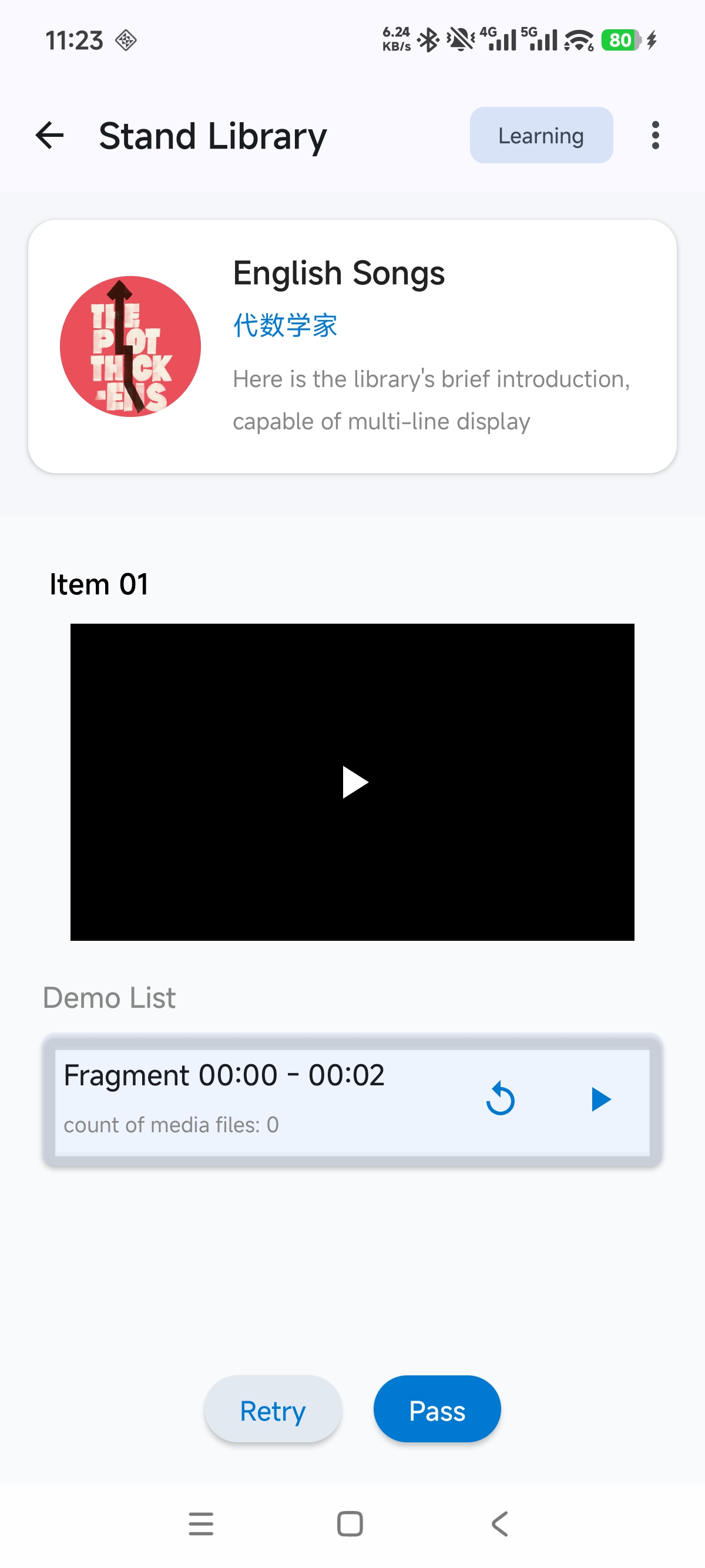
The learning library has two interface states: Learning and All. You can switch between them using the button in the upper-right corner.
"Learning" only shows the items that currently need to be studied by the user.
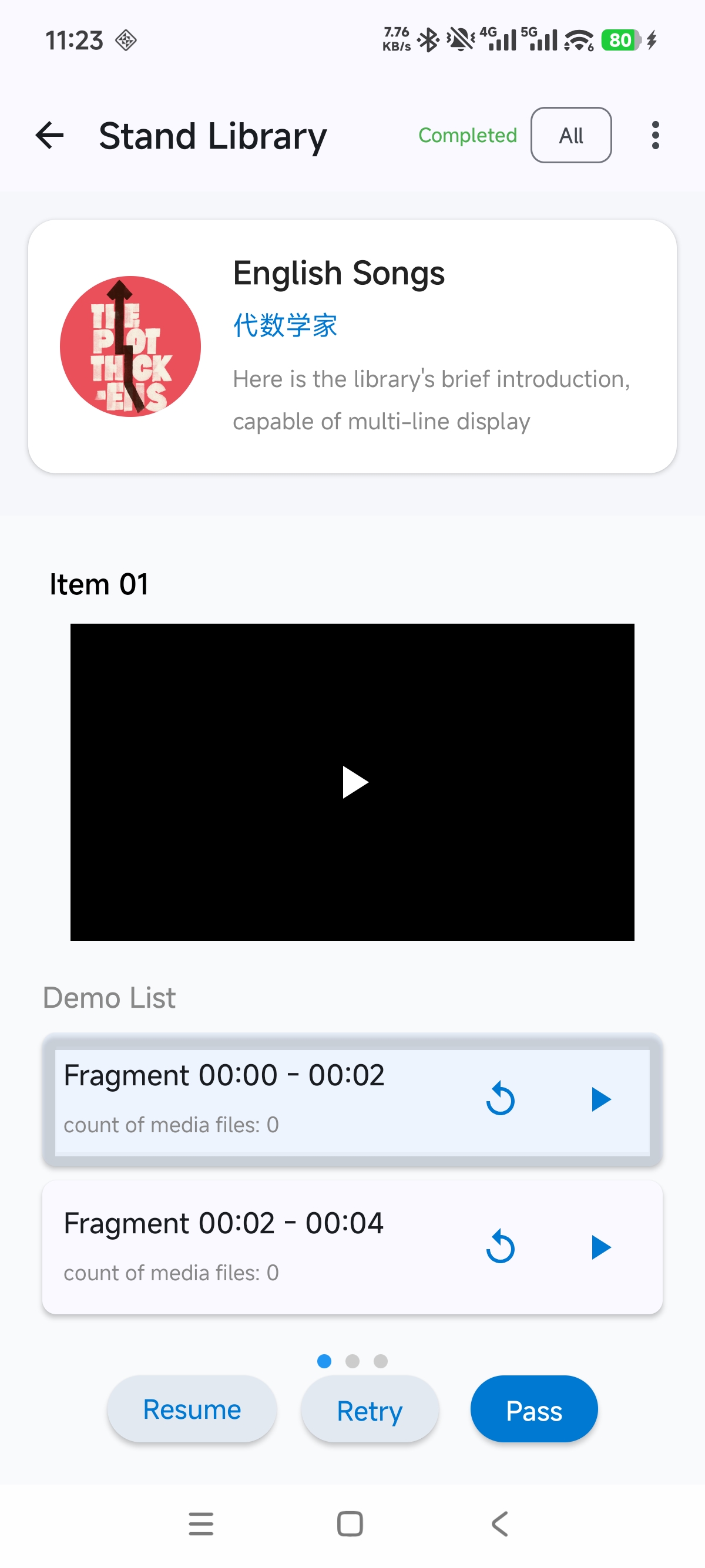
Interface Guide: "All"
The learning library has two interface states: Learning and All. You can switch between them using the button in the upper-right corner.
"All" displays every item in the library, and status tags show the current learning state of the page or the selected clip (demo).
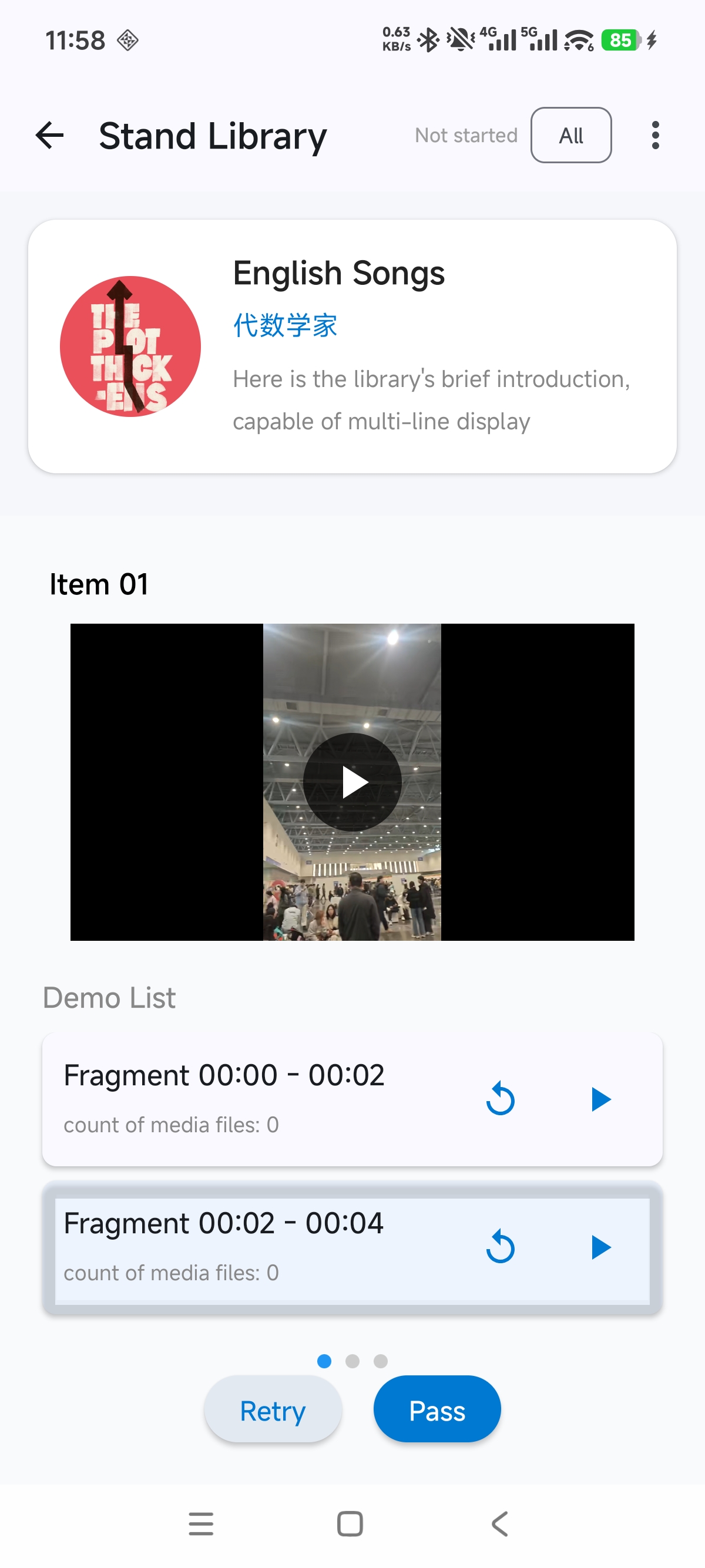
Learning Status Guide
1. Not Started (not yet included in the learning plan)
2. Beginner Stage (initial intensive review period)
3. Learning (active, should be studied in the current cycle)
4. Waiting for Review (one round completed, waiting until due)
5. Learning Completed (interval has not reached the threshold yet, still in the review cycle)
6. Shelved (manually paused by the user and removed from scheduling)
7. Completed (interval >= 90 days, regarded as long-term mastery)
Example Walkthrough 01
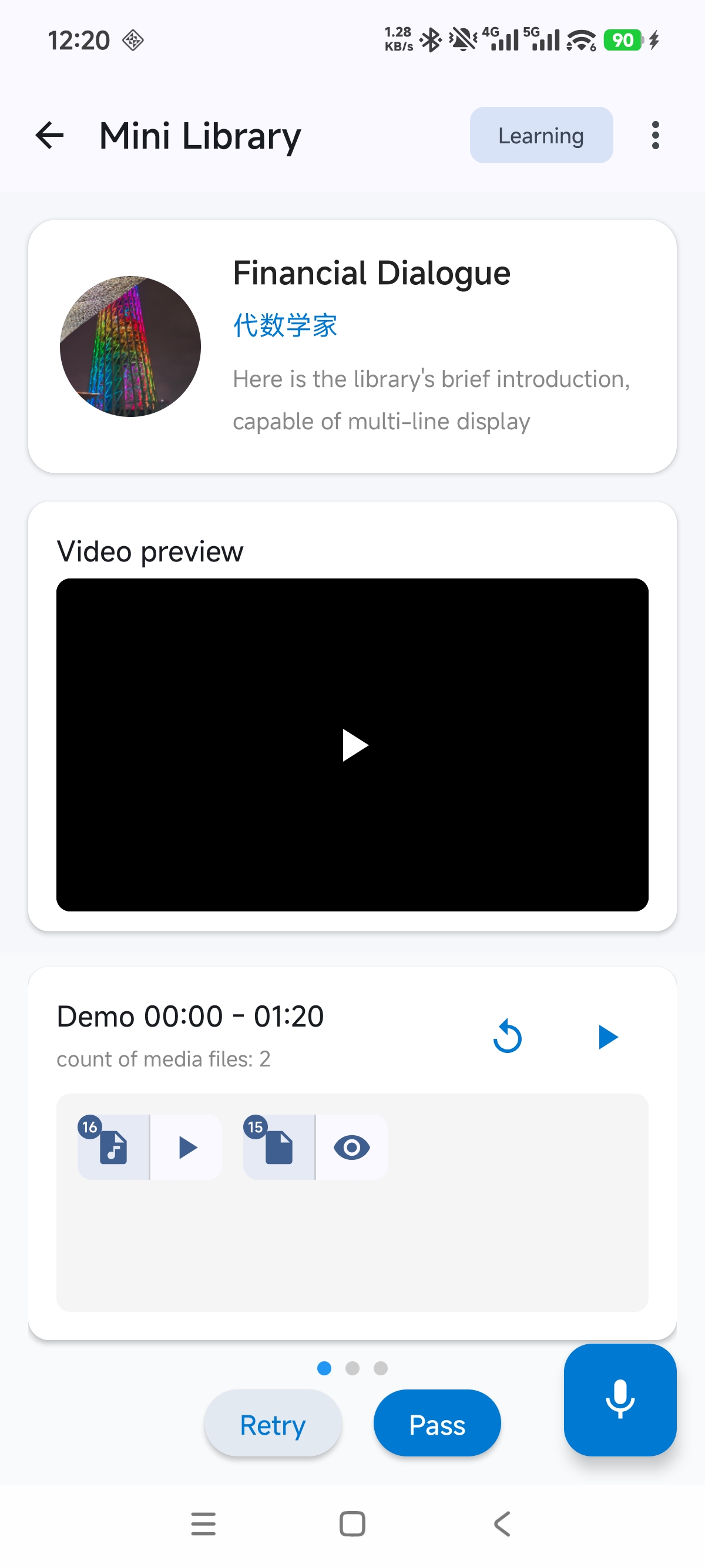
Now imagine a mini library with 10 clips (demos) in total. Each clip is about 30 seconds to 1 minute long. They may be in order, and some are harder while others are easier. The goal is to finish imitation practice for all clips.
1. At the beginning, all clips are marked as "Not Started". Based on the mini library learning settings, there will automatically be 3 new clips to study each day under INITIAL_LEARNING, and 5 clips from WAITING_REVIEW that return to study status after their interval ends under INITIAL_LEARNING/LEARNING.
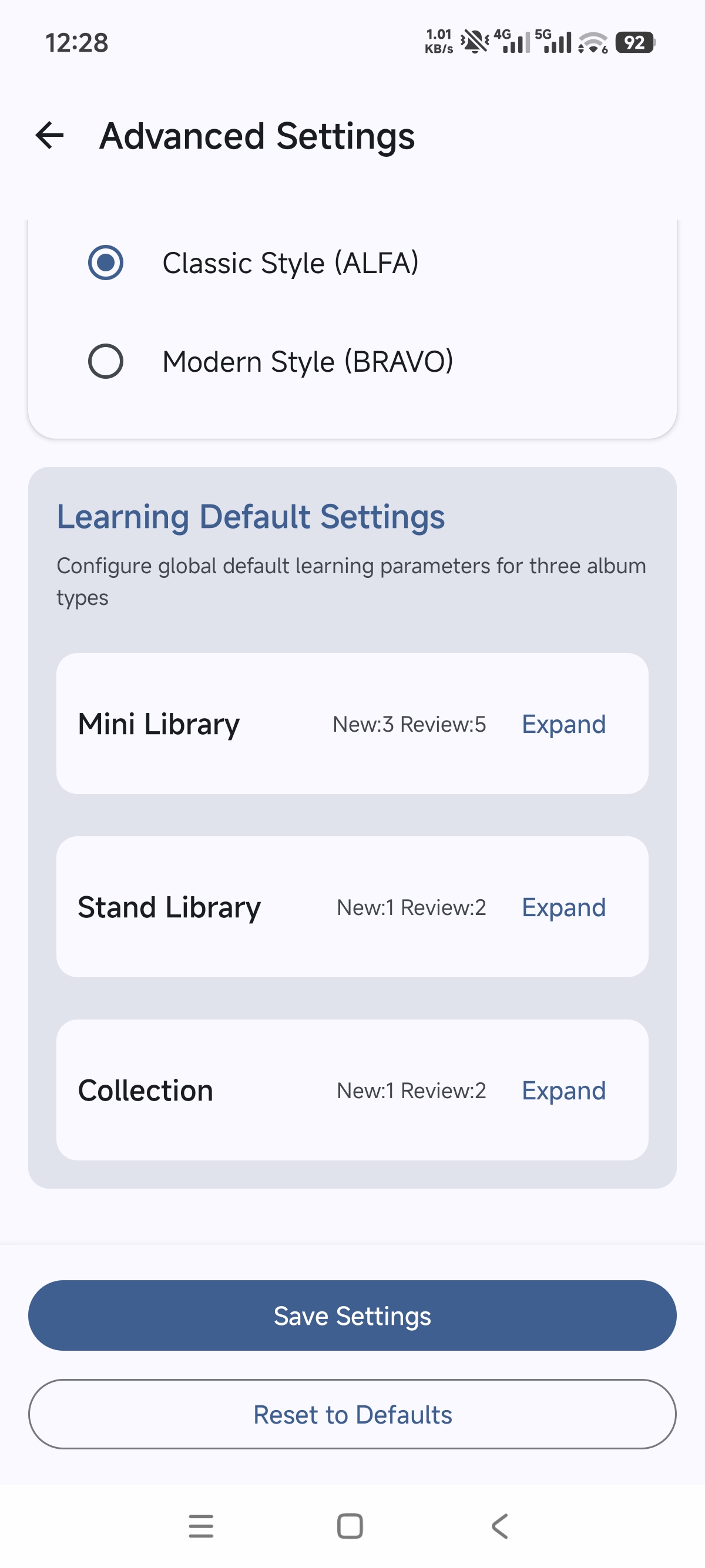
Each type of library has its own configuration under Advanced Settings - Default Learning Settings. For example, the current mini library setting is 3 new items and 5 review items.
Example Walkthrough 02
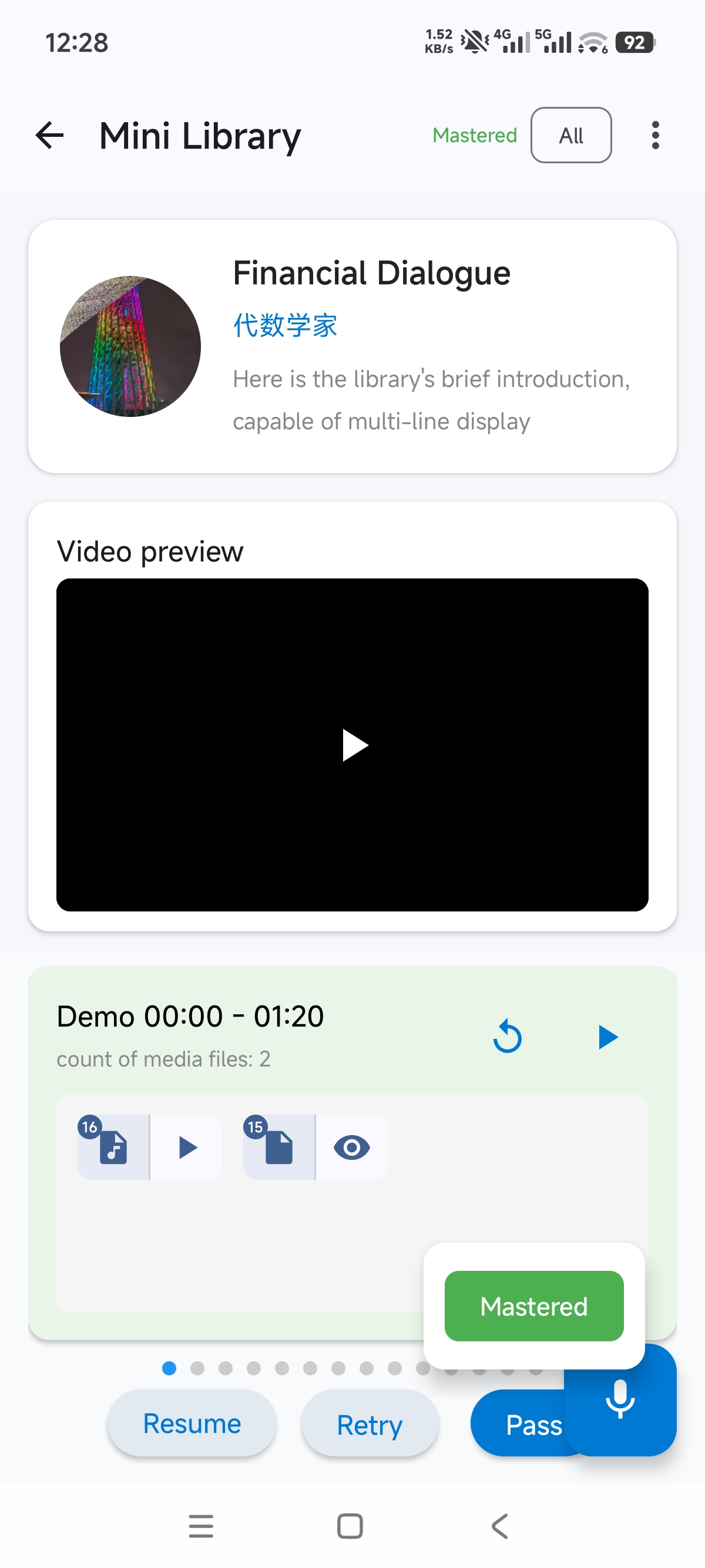
2. For clips in the INITIAL_LEARNING/LEARNING state that are waiting to be studied, there should be 3 at this point. After practicing, or even after practicing part of them, you can choose "Pass" or "Practice Again" based on how well you did. If you feel a clip has already been mastered well enough and no further practice or study is needed, you can press and hold "Pass" to bring up the "Mastered" button and mark it. If you do not want to practice or study a clip for now and do not want it pushed to you actively, press and hold "Practice Again" to bring up the "Shelve" button and mark it. In that case, it will not appear again unless you manually choose "Restore". If you tapped a button by mistake, switch to the "All" interface state from the upper-right corner, find the corresponding clip, and choose "Restore" to return it to the learning state.
Example Walkthrough 03
3. On the first day, there will only be 3 beginner clips. Once all clips waiting to be studied in this library are completed, the task for today is finished. The related learning data, such as recording duration, will be counted in the "Learning Duration" chart, though there may be some delay. You can also view learning statistics in the My Learning section on the Home page.
4. On the second day, because it is still the beginner phase, the practice completed yesterday will come back for review today. Together with the newly added practice, there will be 6 clips waiting to be studied or practiced. If some clips are shelved or mastered, the number will decrease accordingly. After finishing the day's practice, continue with the corresponding practice on the third day and fourth day in the same way.
5. If you do not want to be constrained by this learning algorithm, it is also completely fine to practice directly in the library. The learning algorithm is a tool, not a rule.
Settings in Advanced Settings
Just save after making changes.
Please note that the spaced repetition algorithm tends to accumulate tasks. If you add too many new items, the amount of review content may become too large to finish and will pile up. So at the beginning, try not to choose too many new and review items.
The current configuration applies globally to this type of library. In the future, configurable settings will be added for each library, making it more flexible.
How to Study: Mini Library
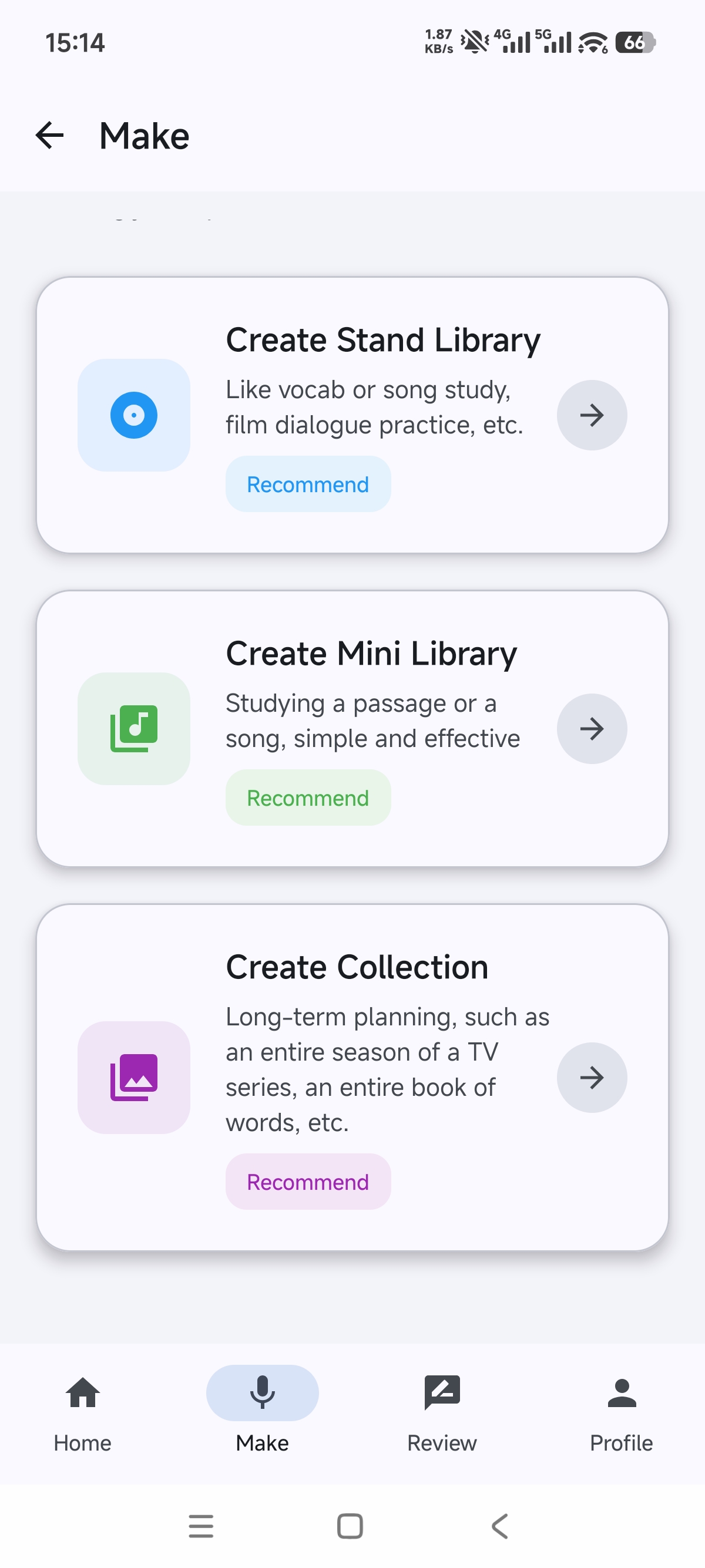
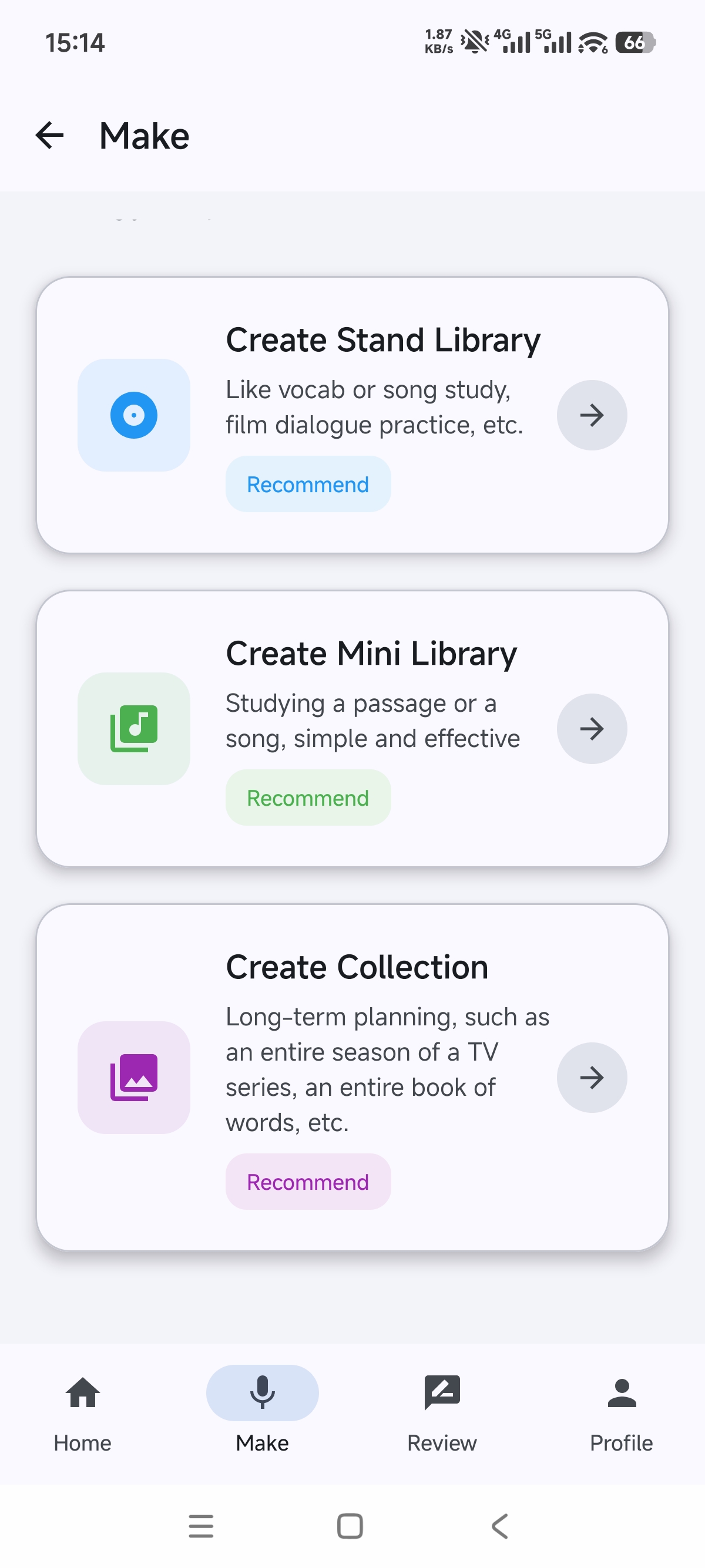
This is generally used for a single multimedia source, which is cut into clips and then practiced one by one through imitation, such as a song or a passage for reading aloud or recitation.
Choose a target you are interested in, download it or obtain it through another recording method, and turn it into a multimedia source. Then create a mini library, split it into clips, and edit the basic library information. If you want to participate in review tasks, you also need to maintain the library's tag information. You can either practice directly or add it to "Learning" for planned study and practice.
How to Study: Standard Library
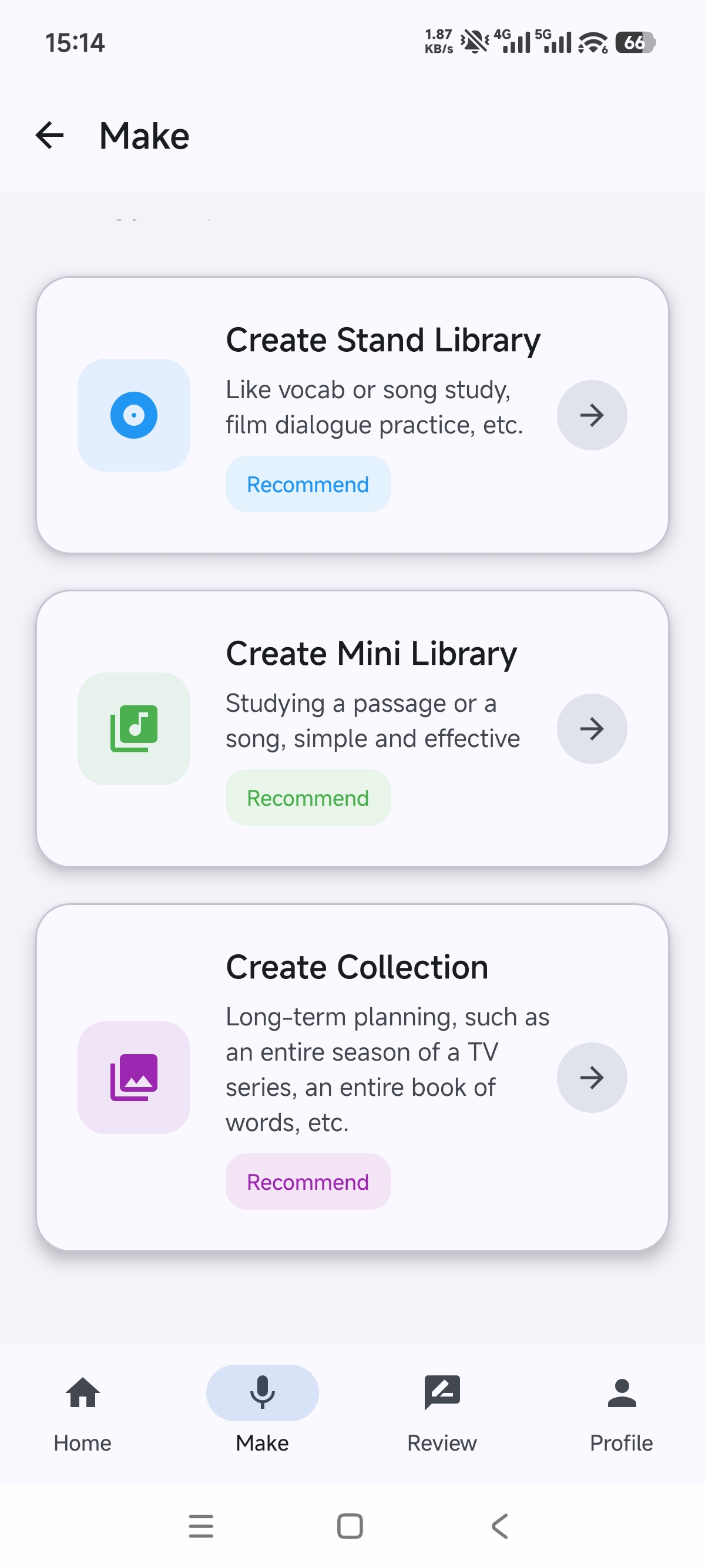
This usually contains multiple multimedia sources when you want to complete imitation practice for a small collection, such as several TV drama clips or several songs in a certain language.
You can choose whether to add it to "Learning" based on your own pace and goals.
How to Study: Collection
This usually involves learning from a relatively large amount of segmented multimedia material, such as dozens or hundreds of example sentences in a certain language.
A collection is best added to "Learning" so that your study plan is more structured.
Ready to start?
Download Atobe Repeater